 No more asking customers for their TINS one by one
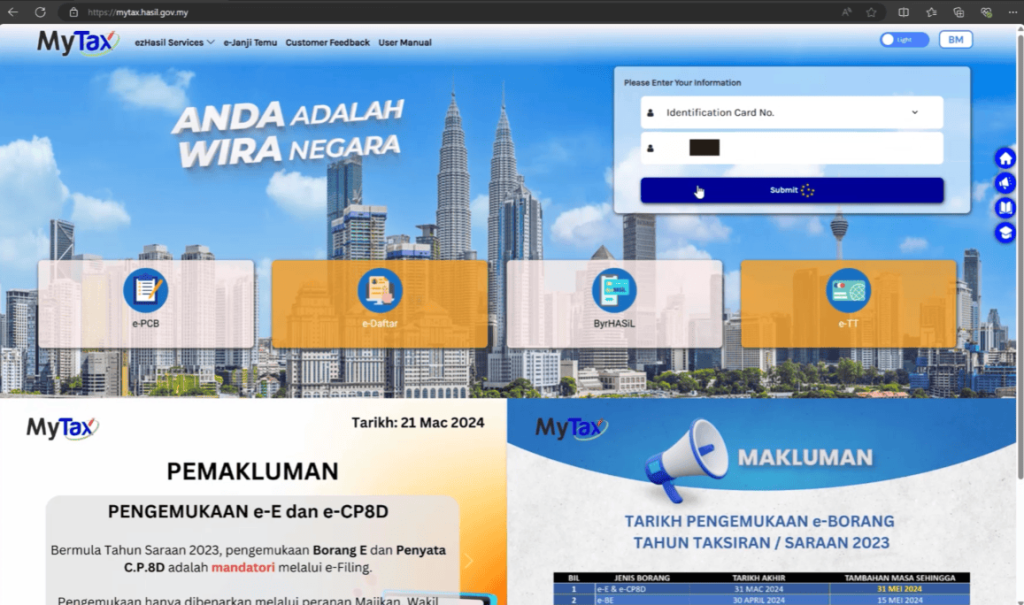
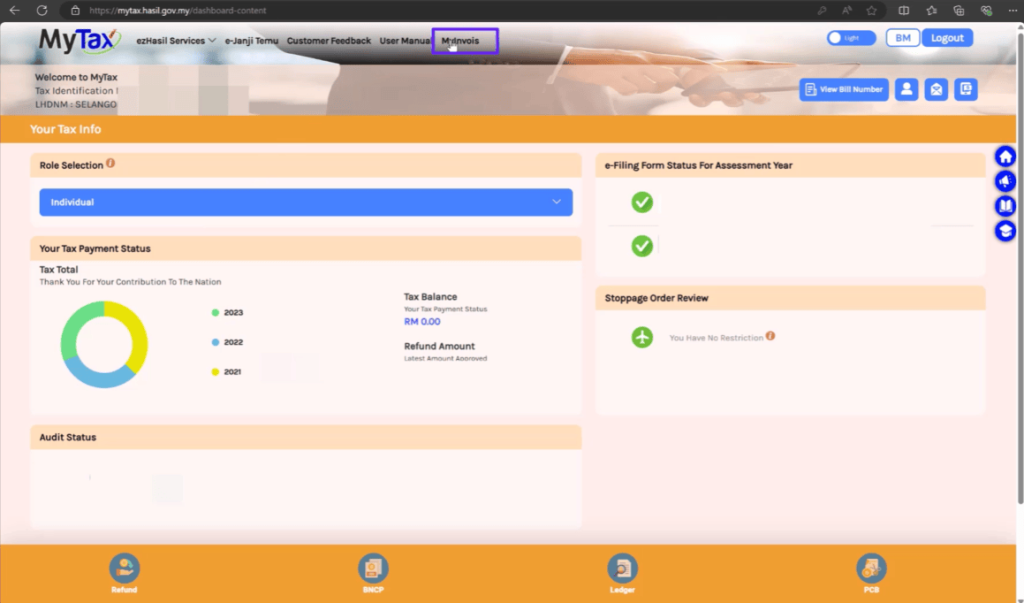
Step 1 : Visit https://mytax.hasil.gov.my/ , click on MyInvois.
Step 2 : Click on the profile icon at the top right, then select “View Taxpayer Profile“.
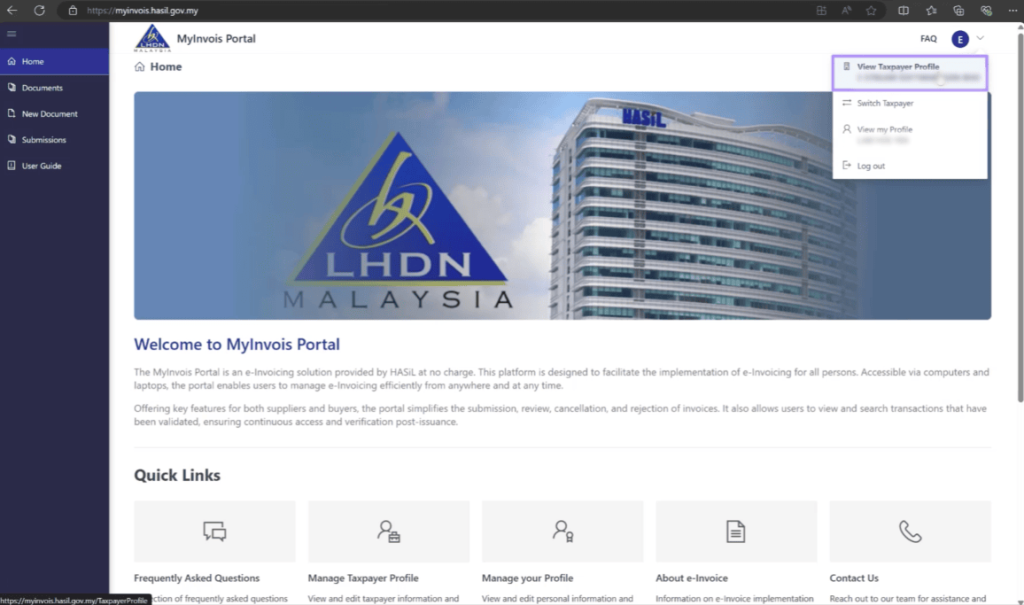
Step 3 : Scroll down to the “Register ERP” section, click Register ERP.
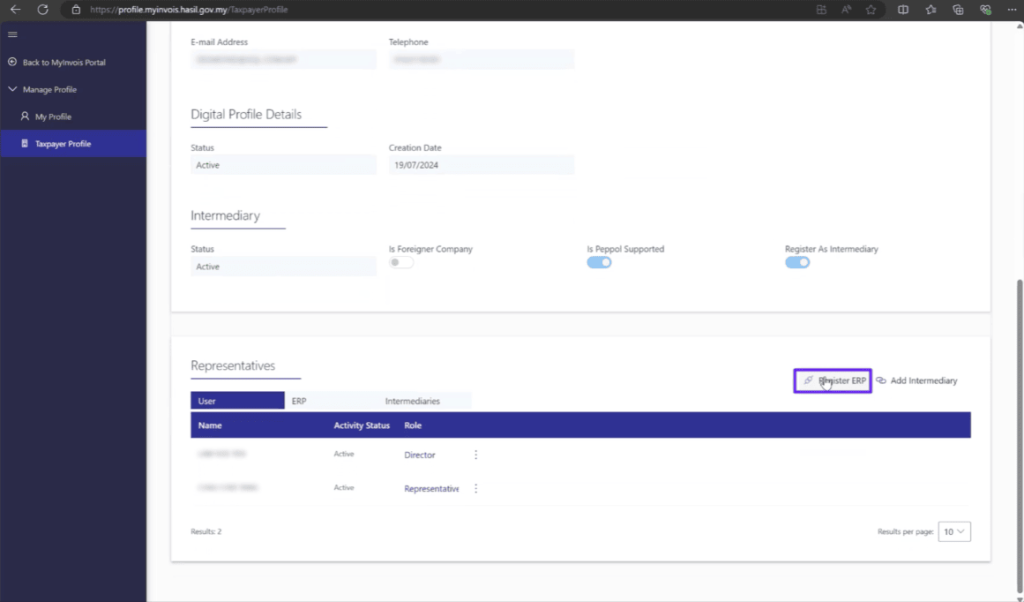
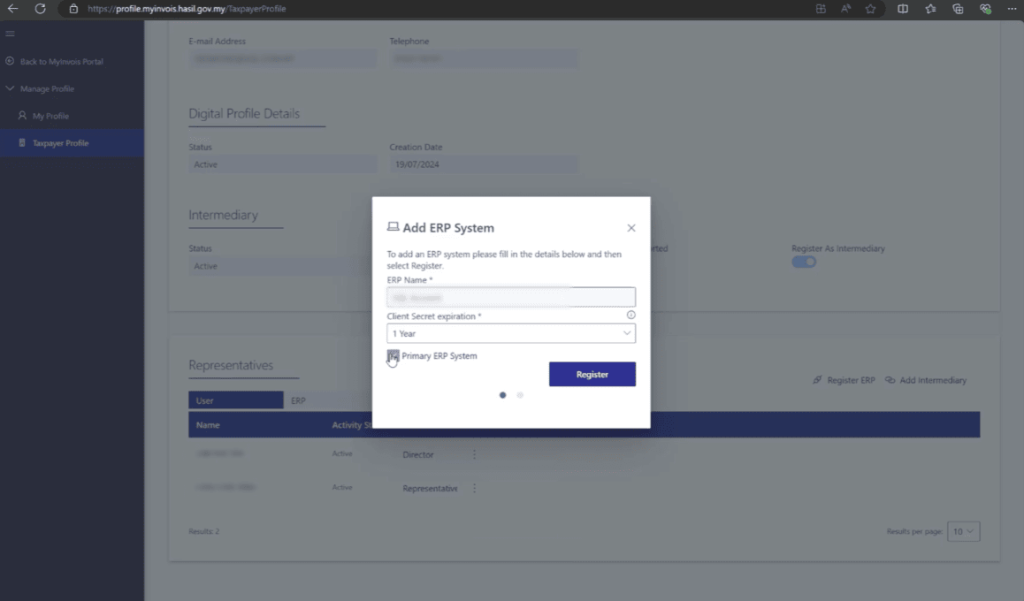
Enter an ERP name, such as “SQL Account ERP,” and select the secret expiration (three years is recommended). Set it as the primary ERP system and complete the registration.
Step 4 : Copy the Client ID, Secret 1, and Secret 2 one by one and paste them into SQL under File | Company Profile.
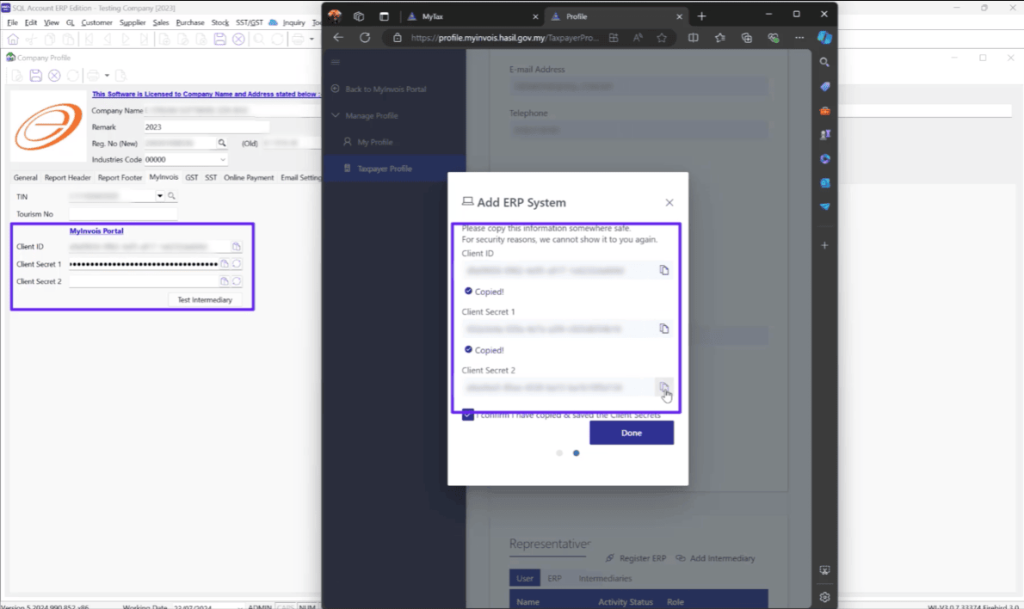
** Note: Company name, BRN, and TIN are required fields.
How to add an Intermediary for LHDN E-Invoice?
LHDN provides two options for businesses to issue e-invoices: through the MyInvois portal manually or via API Integration. If you choose the API Integration option, you will need to obtain the software company’s information, including TIN, BRN, and Name, to add as an intermediary in the LHDN MyInvois portal. Follow the steps below to add an intermediary.
Steps to add an Intermediary for LHDN E-Invoice
Setp 1 : Visit https://mytax.hasil.gov.my/ , click on MyInvois.
Step 2 : Click on the profile icon at the top right, then select “View Taxpayer Profile“.
Step 3 : Scroll down to the “Add Intermediary” section, click Add Intermediary.
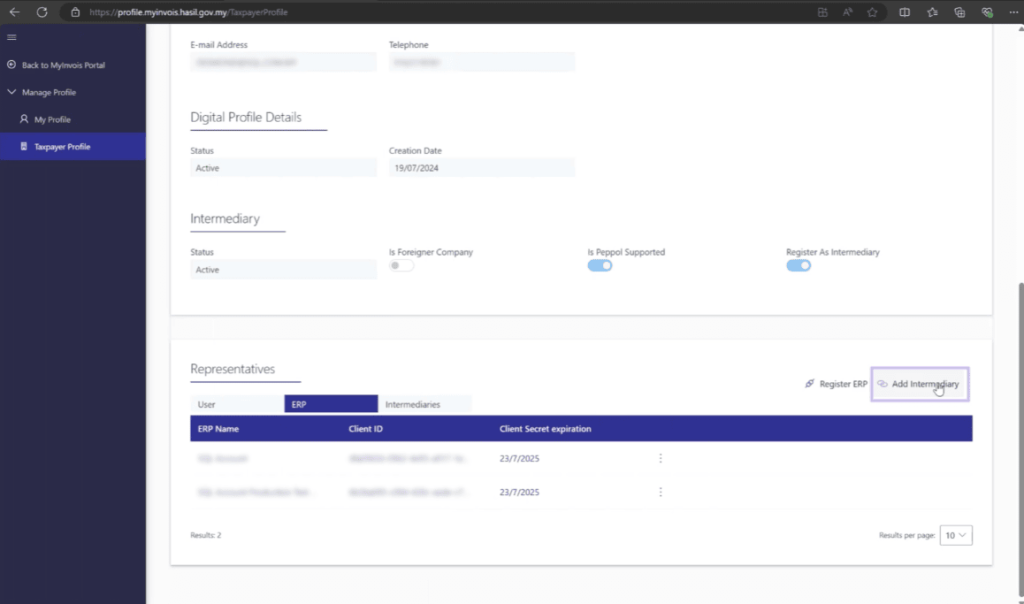
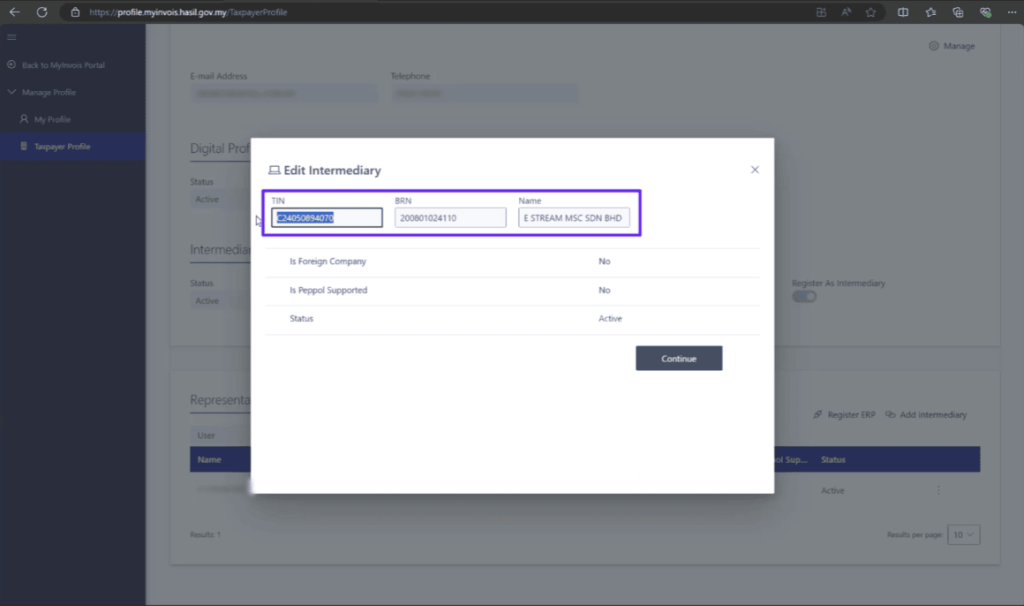
For SQL Account customers, below is the intermediary information for SQL:
TIN: C24050894070
BRN: 200801024110
Name: SQL Account ERP
Enter software provider TIN, BRN, Name. Click on continue.
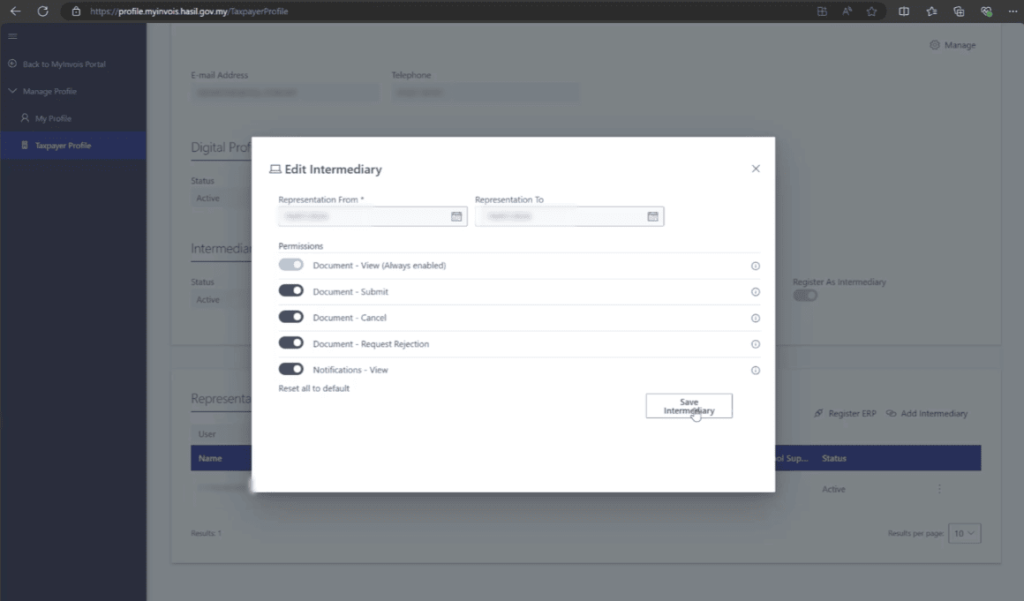
Mandatory Fields
Before issuing an e-Invoice, you will need to make sure some mandatory fields is updated correctly.
Update Customer Info
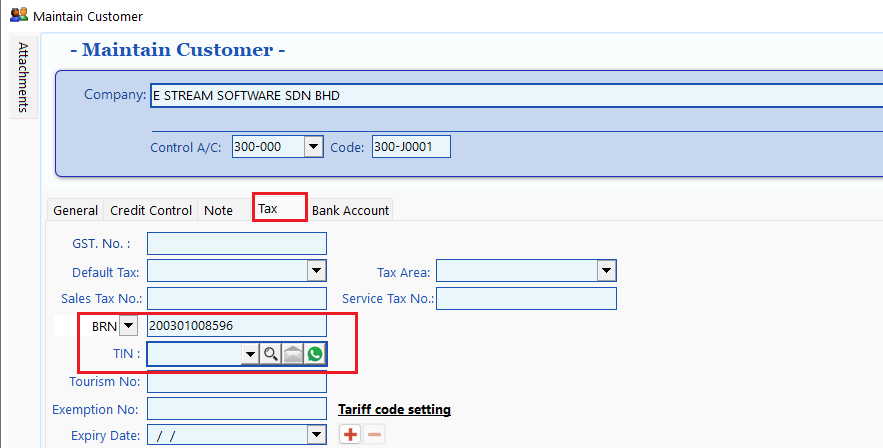
Go to Customer > Maintain Customer > New or Edit an existing customer.
Fill in the mandatory fields as shown below.
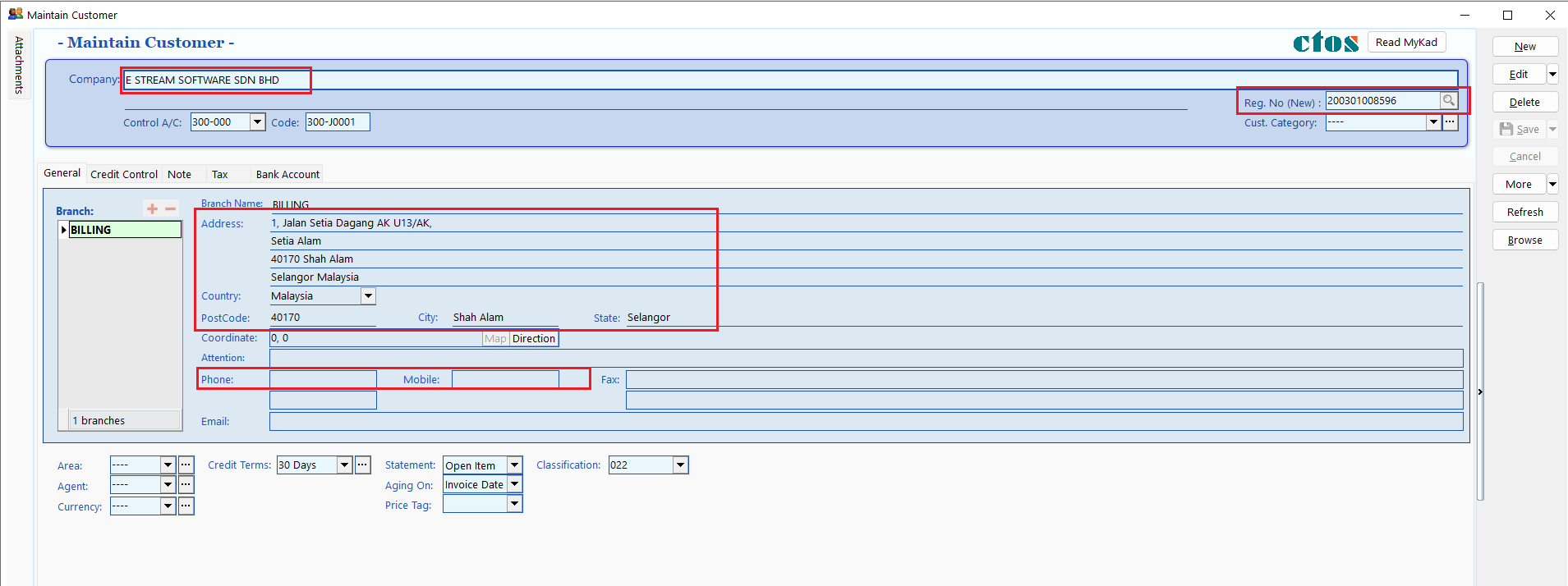
Click on Tax tab, and fill in customer tax info according to the guide in next section.
Local Business (Companies registered with local authorities)
If you customers are a registered entity in Malaysia (e.g.: SSM registered), you must fill in the BRN & TIN of the customer in order to issue e-Invoice to the buyer.
Individual / Foreign Buyer
In facilitating a more efficient e-Invoice issuance process as well as to ease the burden of individuals in providing their Tax Identification Number (TIN) and identification number details, IRBM provides the following concession to individuals:
For Malaysian Individuals to provider either:
TIN only
MyKad / MyTentera identification number only
Both TIN and MyKad / MyTentera identification number
For non-Malaysian individuals to provide either:
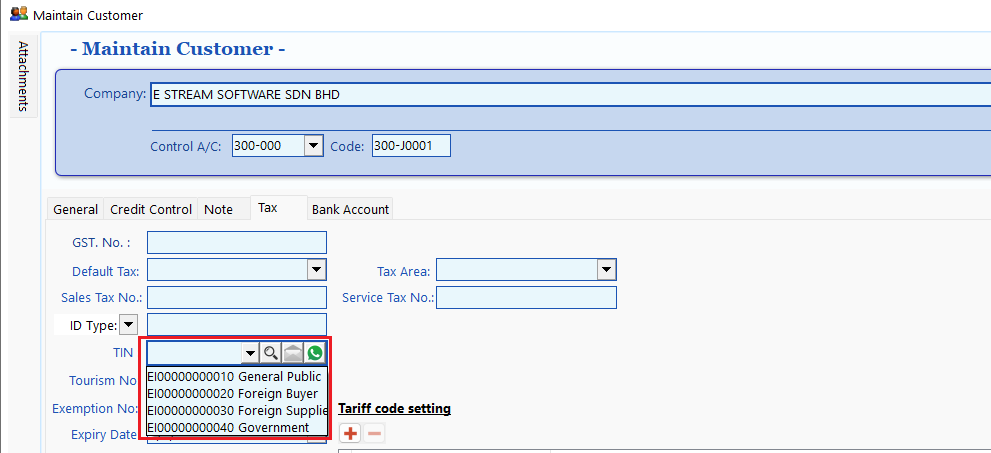
TIN only (TIN assigned by IRBM or use General TIN EI00000000020)
Both TIN and BRN of foreign company
Both TIN and passport number / MyPR / MKAS identification number
For Malaysian Individuals:
| Scenario | In SQL Account |
|---|---|
| TIN only | ID Type: NRIC, ID Value: Leave Empty, TIN: Buyer TIN |
| MyKad only | ID Type: NRIC, ID Value: Buyer NRIC, TIN: General Public EI00000000010 |
| Both TIN & MyKad | ID Type: NRIC, ID Value: Buyer NRIC, TIN: Buyer TIN |
For non-Malaysian Individuals:
| Scenario | In SQL Account |
|---|---|
| TIN only | ID Type: Passport, ID Value: Leave Empty, TIN: Buyer TIN or General TIN EI00000000020 |
| Both TIN & BRN of Foreign Company | ID Type: BRN, ID Value: Buyer BRN, TIN: Buyer TIN or General TIN EI00000000020 |
| Both TIN & Passport | ID Type: Passport, ID Value: Buyer Passport Number, TIN: Buyer TIN or General TIN EI00000000020 |
Reference:
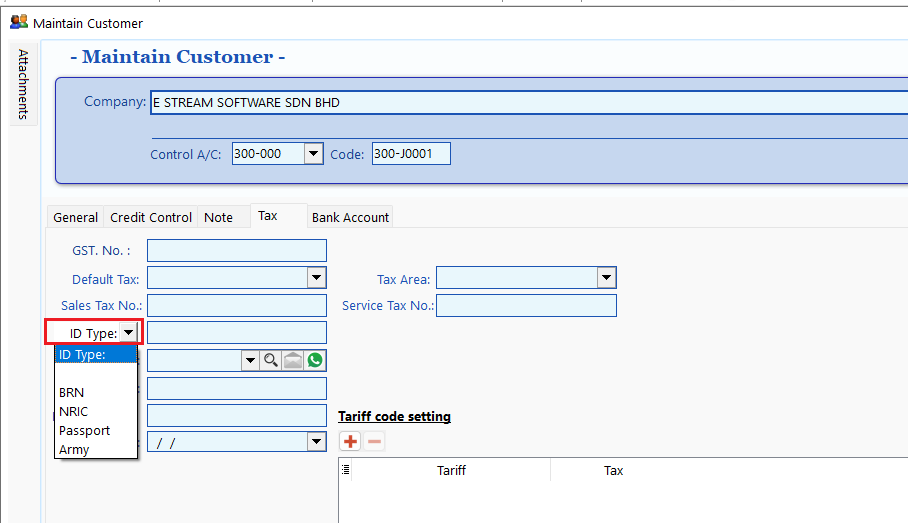
List of ID Type in Maintain Customer:
List of General TIN in Maintain Customer:
Update Stock Item
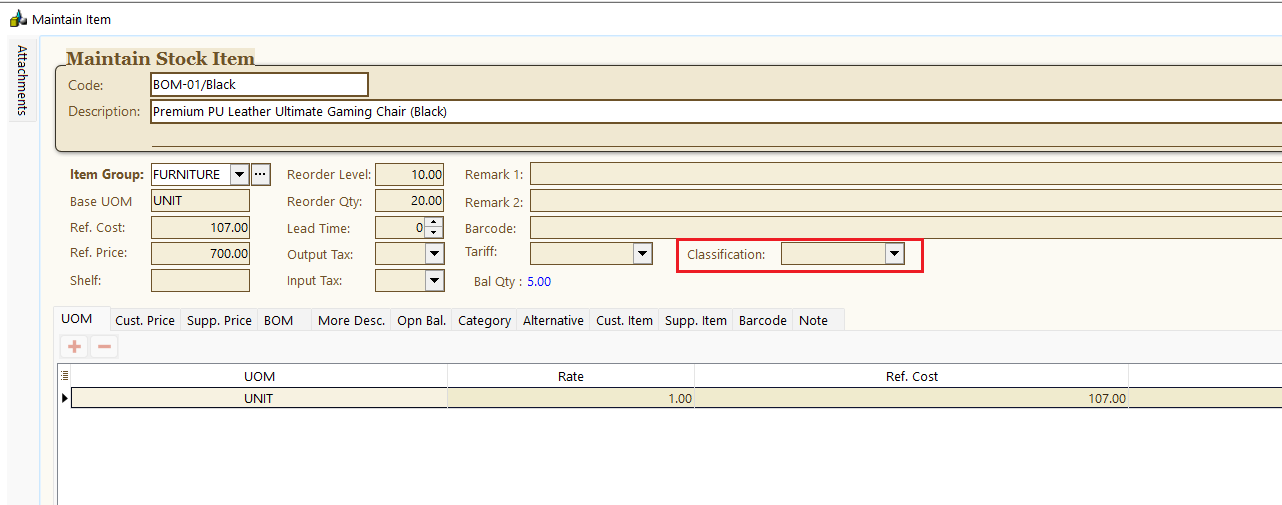
IRBM (LHDN) has introduced Classification Codes to define the category of products or services being billed as a result of a commercial transaction.
Go to Stock > Maintain Stock Item > Edit stock
Update the classification accordingly.
Repeat Step 1-2 for all stocks.
You can also override the stock item classification codes during sales invoice entry.
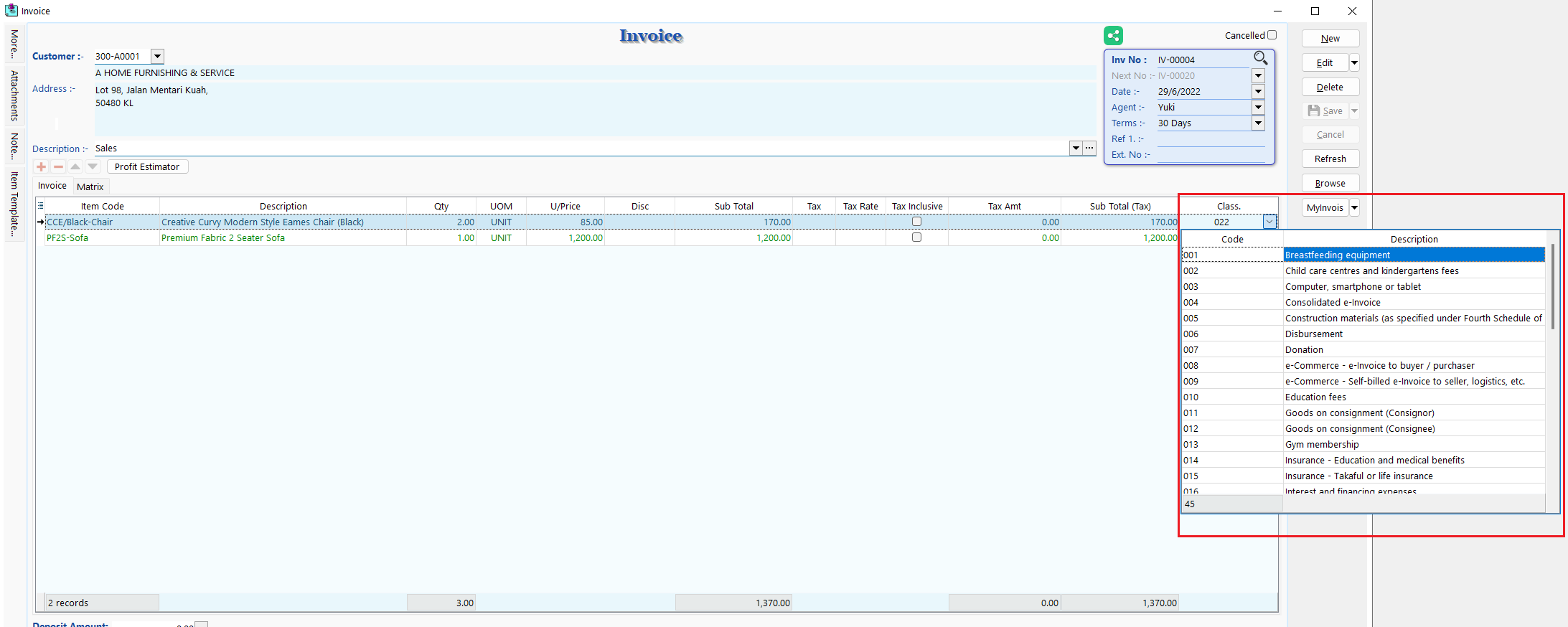
E-Invoice
Submitting E-Invoices via SQL Account is seamless and integrates smoothly with your existing workflow.
Sales Invoice
Submission
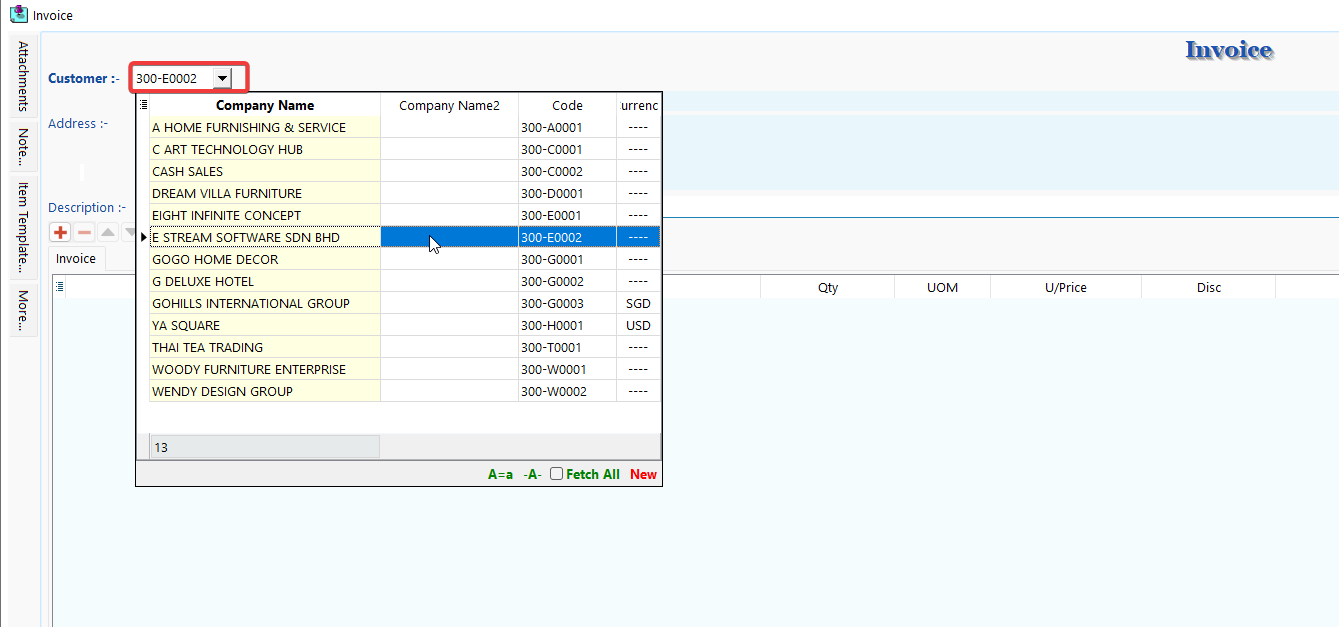
Go to Sales > Invoice > New to issue a new invoice.
Select an existing customer or create a new customer.
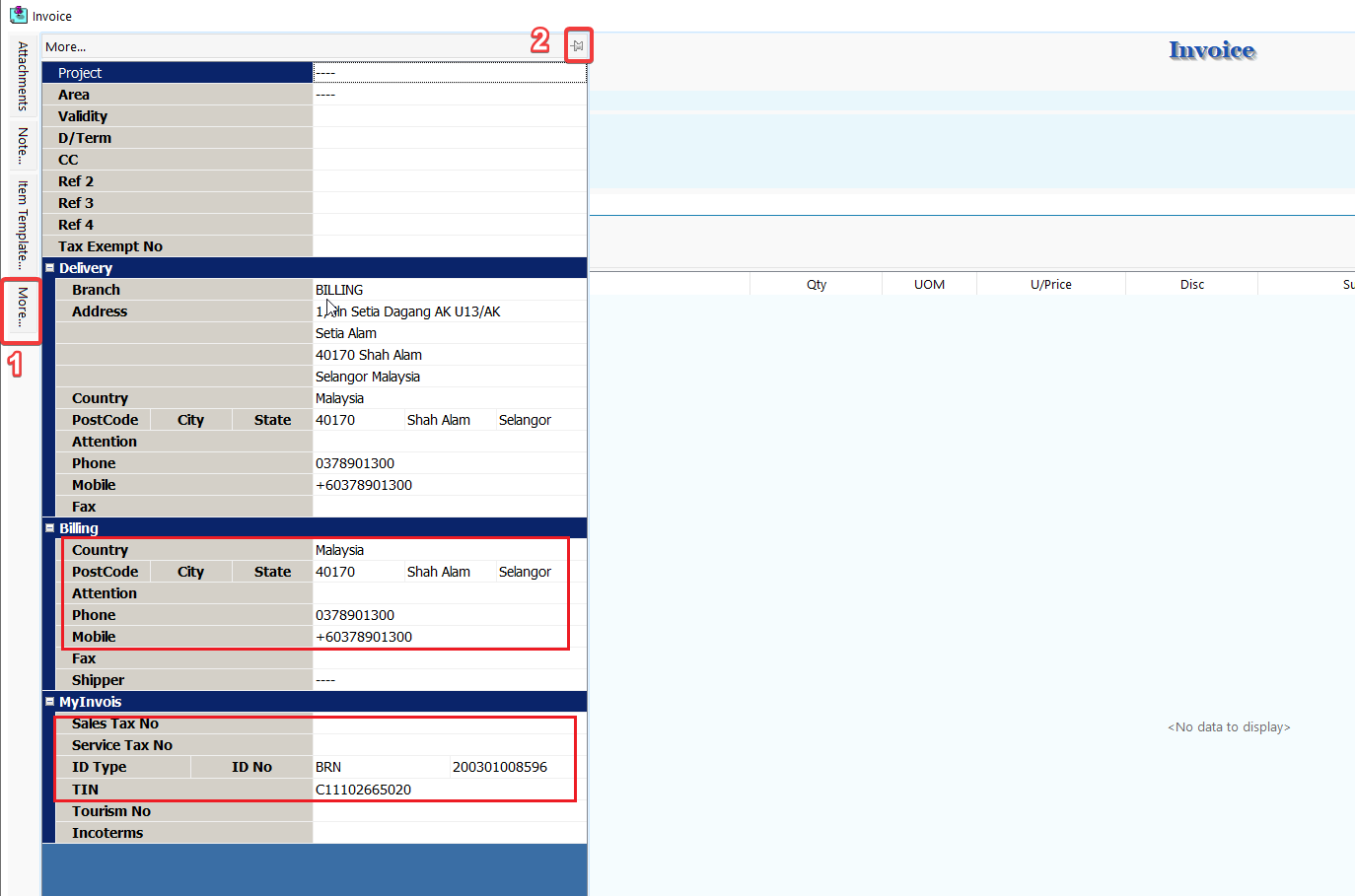
Click on More (1) to view mandatory info required for e-invoice, it will be prefilled with the info from existing customer profile. Click on 📌(2) to pin the tab for easier view.
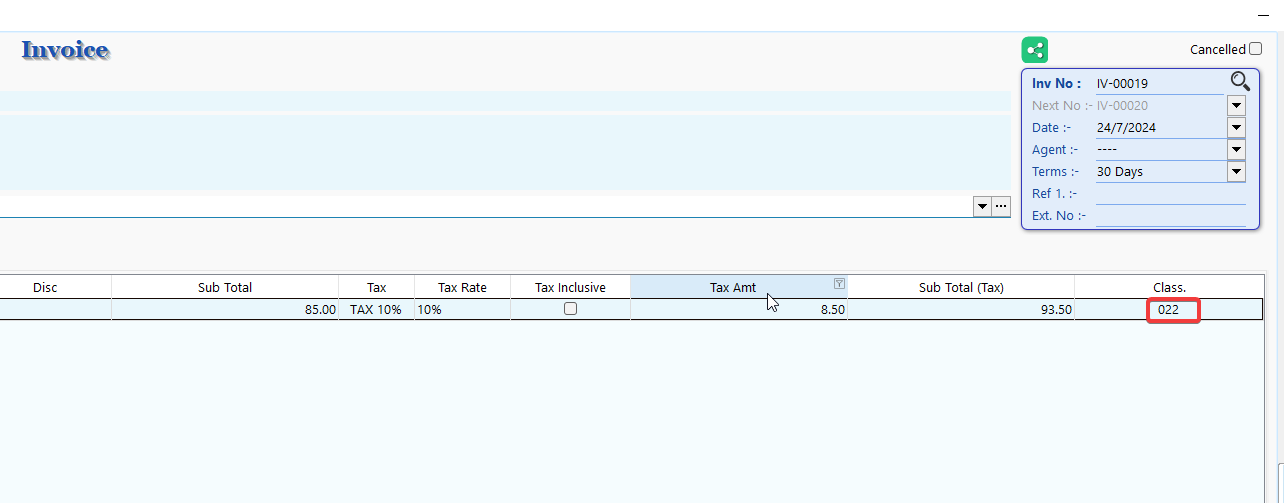
Continue with usual invoice entry and Save, make sure stock Classification code had been filled in correctly.
Click on MyInvois > Submit E-Invoice
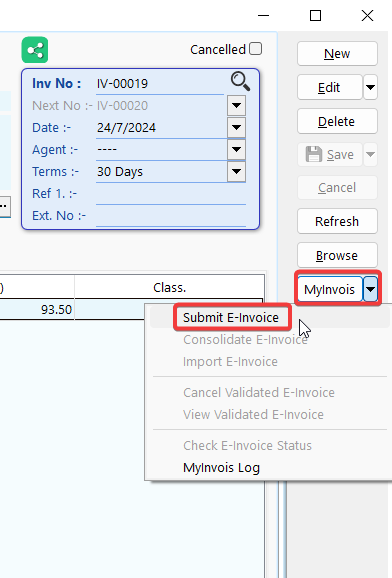
If the submission is valid, you will see the screen below, where you can choose to Cancel the E-Invoice submission if there is a mistake or if the buyer rejected the E-Invoice.

If you cancel the e-invoice here, you will see the screen below:

Report
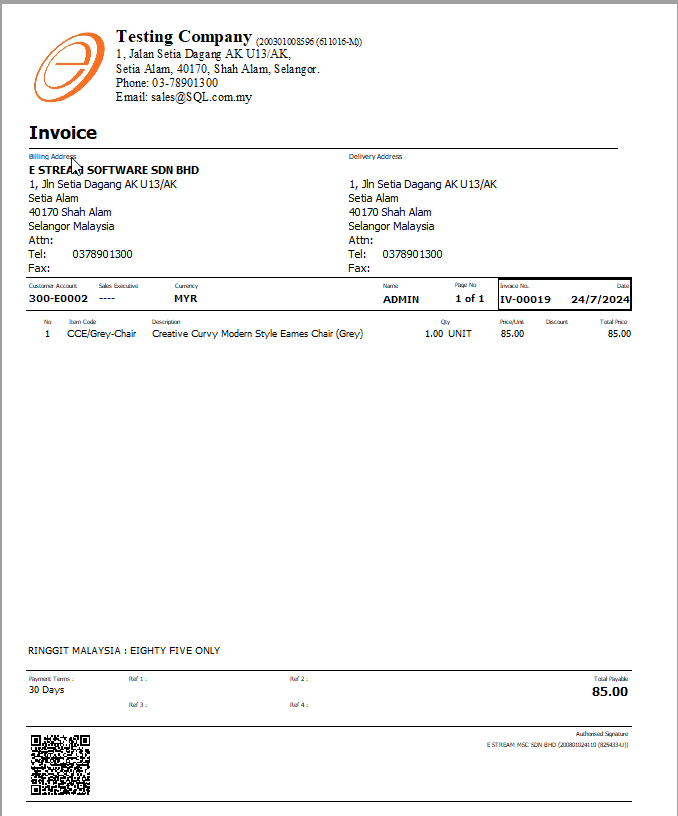
Preview the report and you can see the E-Invoice validation QR code is embedded in the invoice.